

Direct Answer
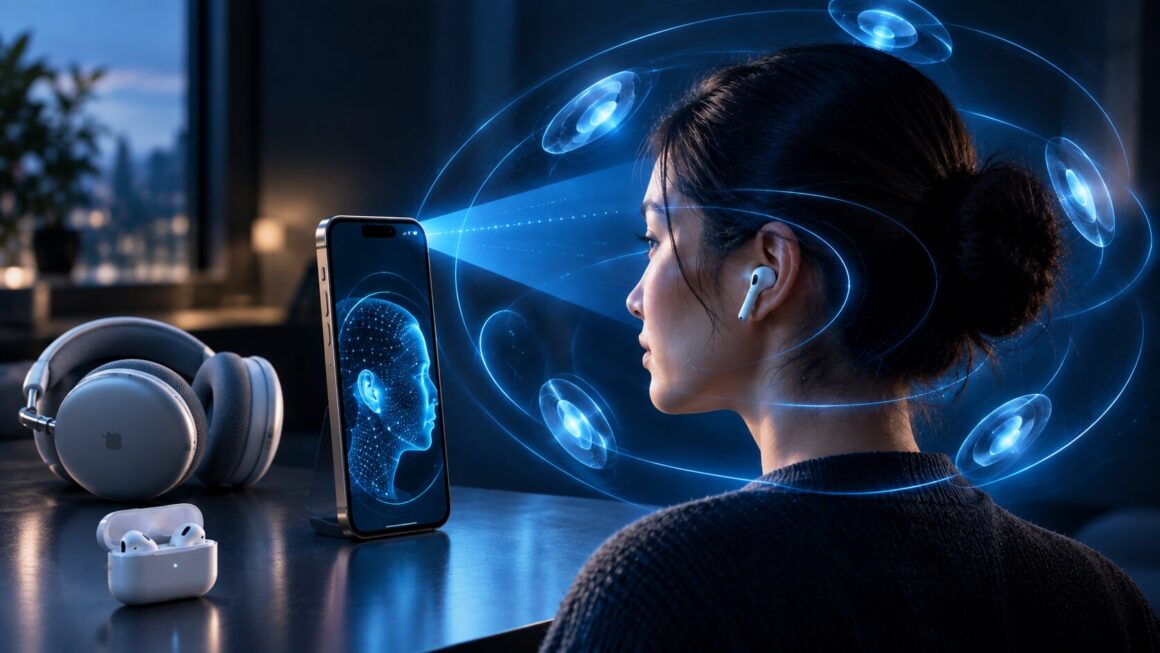
Enable Personalized Spatial Audio by connecting compatible AirPods or Beats headphones to an iPhone with a TrueDepth camera, opening the headphones in Settings, and following the guided face and ear scans. The finished profile can sync to supported Apple devices using the same Apple Account.

A Fast Setup Strategy
Connect the headphones first, open their dedicated settings page, and complete the face and ear scans in one uninterrupted session. Good lighting and steady movements make the guided scan easier.
Once the profile is saved, test Personalized Spatial Audio with familiar music and a supported movie before deciding which mode you prefer.
Personalized Spatial Audio Requirements
Personalized Spatial Audio needs compatible AirPods or Beats headphones and an iPhone with a TrueDepth camera for the initial scan. Supported playback can extend to compatible iPhone, iPad, Mac, Apple TV, and Apple Vision Pro devices.
- An iPhone with a TrueDepth camera for setup
- AirPods or Beats headphones that support Spatial Audio
- Current device and headphone software
- Supported Spatial Audio or Dolby Atmos content
How to Create the Audio Profile
- Connect and wear the compatible AirPods or Beats headphones.
- Open Settings on the iPhone.
- Tap the connected headphones near the top of Settings.
- Select Personalized Spatial Audio and choose the personalization option.
- Follow the guide to scan the front of the face.
- Follow the prompts to scan the left and right ears.
- Finish the process and test the saved profile.
The iPhone provides positioning instructions throughout the scan, so special equipment is not required.
How to Change Spatial Audio Modes
Open Control Center on an iPhone or iPad, press and hold the Volume slider while the headphones are connected, and tap Spatial Audio.
- Head Tracked: the soundstage appears anchored to the device as the listener moves.
- Fixed: immersive audio stays active without changing with head movement.
- Off: Spatial Audio is disabled and standard stereo is used.
Personalized Spatial Audio changes the profile; Head Tracked and Fixed control how that profile behaves during playback.
What Content Works With the Profile?
The profile can work with supported music, movies, television, and other content that uses Spatial Audio or Dolby Atmos. Movies may show the effect clearly because voices and effects can appear to occupy different positions.
Music results depend on the recording and mix. Compare several compatible tracks before deciding whether Personalized Spatial Audio improves the experience.
Frequently Asked Questions
Can Personalized Spatial Audio be created without an iPhone?
A compatible iPhone with a TrueDepth camera is required to create the profile. Afterward, the profile can be used on other supported Apple devices signed into the same Apple Account.
Is the facial scan stored as a normal photo?
Apple says the setup data is processed on the device and the images are not stored as ordinary photos. Check Apple’s current privacy documentation for the latest details.
How do you turn off Personalized Spatial Audio?
Open the connected headphone settings on the iPhone, select Personalized Spatial Audio, and choose the option to stop using the profile. A new profile can be created later.
The Bottom Line
Personalized Spatial Audio takes only a few minutes to set up and can tailor supported Apple audio to the listener’s head and ears. Verify compatibility, complete the guided scan, and compare Head Tracked and Fixed modes with familiar content.
Source: Apple. Read the original article.
Read more:
- How to Master Apple Notes AI Features
- How to Use Apple’s Live Rewind Audio Intelligence?
- Related reading on wpradar.com: Make Live Photos loop and bounce on iPhone; Use this new iPhone setup checklist.