


Direct Answer
You can use apple math notes 3d graphs to explore equations as interactive surfaces, inspect their shapes from different angles, and compare mathematical functions visually. For a more useful study workflow, pair each graph with an explanation of the equation, your observations, and a descriptive note title. Apple’s Calculator and Notes apps serve different roles: Math Notes handles mathematical work, while Notes helps organize and retrieve your material.

A Better Way to Inspect a Mathematical Surface
Begin with one clear equation, insert its graph, and rotate the surface before adding a second function. This makes peaks, valleys, symmetry, and intersections easier to interpret.
When comparing functions, keep the equations and graph in the same note so every visual change remains traceable to the expression that produced it.
Key Takeaways
- Create 3D graphs: Use Apple Math Notes in the Calculator app to visualize equations involving x, y, and z.
- Explore mathematical surfaces: Rotate graphs to examine their shapes and compare functions carefully.
- Record your findings: Keep equations, predictions, observations, and conclusions together in a structured math note.
- Organize your work: Use Apple Notes folders, tags, and Smart Folders to make related study material easier to find.
- Check exported files: Markdown export may not preserve every graph or interactive feature, so inspect the result before relying on it.
Create a 3D Graph in Math Notes
1. Open the math workspace
Launch Calculator on your iPhone, open the calculator-mode menu, and select Math Notes. Start a new math note or open one you have already saved.
2. Enter a function
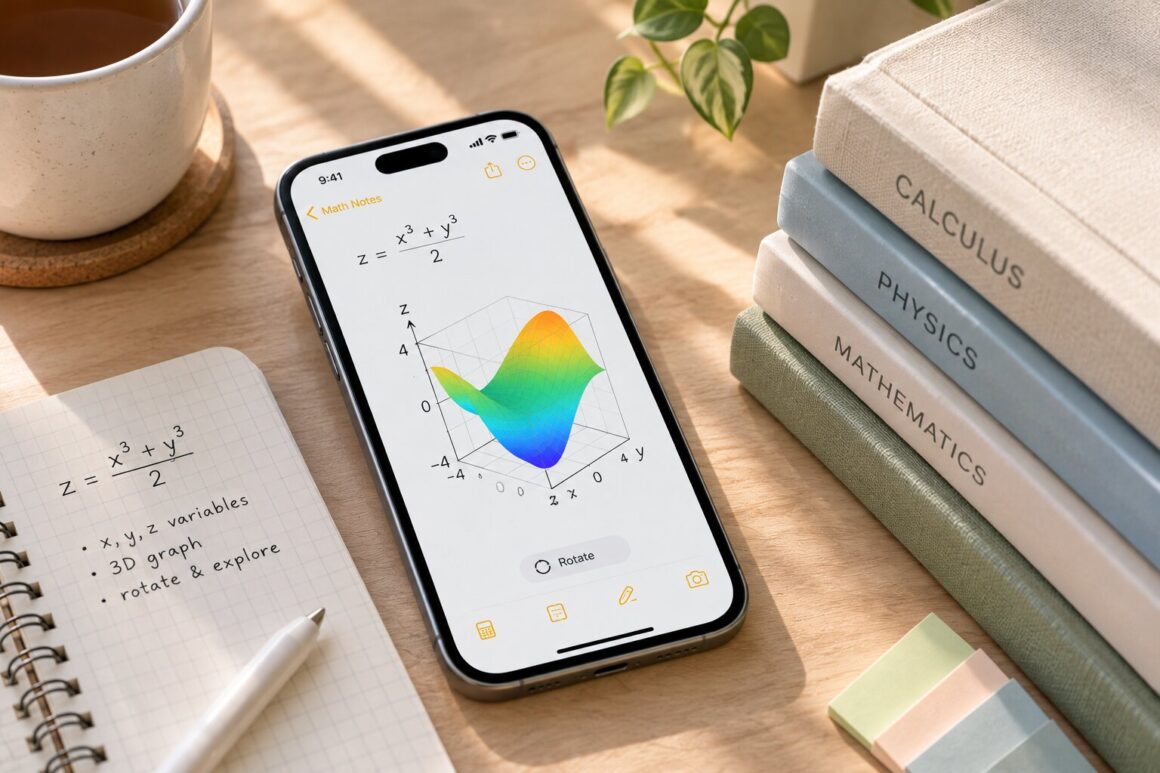
Write or type an equation with (z) on the left and (x) and (y) on the right. For example, use (z=(x^3+y^3)/2) to explore a surface defined by two input variables.
3. Insert the surface
Use the available Insert 3D Graph option for the equation. If the interface asks you to assign variables to axes, follow the prompts. The graph provides a visual companion to the mathematical expression.
4. Explore different viewpoints
Interact with the graph by dragging it to examine the surface from different angles. Reposition it when needed to make room for other content. The available controls may depend on the device and software version, so consult Apple’s current instructions if your interface differs.
Learn More by Comparing Functions
A graph becomes more informative when you investigate a specific mathematical question instead of simply viewing its shape.
Try this process:
- Start with a reference function. Record the original equation and what you expect its graph to look like.
- Change one feature. Adjust a coefficient or modify a term to create a second function.
- Inspect the difference. Look for changes in the surface’s height, direction, or curvature.
- Record the result. Write down what changed and whether the graph matched your expectation.
If your Math Notes interface supports the comparison you want, examine the surfaces together. Otherwise, compare them in separate views and document the differences. Be careful not to infer a mathematical result from appearance alone; use the equations and relevant calculations to check your interpretation.
Build a Reusable Math-Note Template
A consistent note structure makes experiments easier to review. For each graphing exercise, include:
- Question: What are you trying to find out?
- Equation: Which function are you investigating?
- Prediction: What do you expect the surface to show?
- Observation: What did you notice while examining the graph?
- Conclusion: What did the visualization help you understand?
- Follow-up: What equation or mathematical property could you explore next?
This structure is especially helpful for coursework, independent study, and technical projects because it preserves the reasoning behind a graph rather than only the final visual.
Organize Your Graphing Projects in Apple Notes
Create a structure that matches your work
Use broad folders for subjects or projects, such as Calculus, Physics, or Engineering. Within them, create subfolders for specific topics or assignments when your folder setup supports nesting.
Choose a structure you can maintain. Too many narrowly defined folders can make saving and locating notes more complicated than necessary.
Use tags for overlapping topics
Tags such as #calculus, #3Dgraphs, and #research can help connect notes that belong to different projects. Choose short, consistent labels so you can search for related work without remembering its exact folder location.
Let Smart Folders collect related material
Smart Folders can gather notes that match selected filters, including relevant tags. For example, a folder configured for a graphing tag can help you find related exercises across multiple subject folders. Available filters and controls may vary by software version.
Give notes descriptive titles
A title such as “Comparing Two Cubic Surfaces” says more than “Math Notes 4.” Include the subject or question when it helps you distinguish similar exercises.
Export Notes Without Losing Important Context
Apple Notes offers a Markdown export option for supported workflows. To use it, open the relevant note, choose Share, and look for Export as Markdown. Follow the available prompts to save or send the exported file.
After export, open the file and inspect its contents. Confirm that the information you need—including equations, images, formatting, and explanatory text—is present. Do not assume an interactive 3D graph will remain interactive or display identically in another application.
For important projects, retain the original note as well as the exported copy until you have confirmed that the new format meets your needs.
Frequently Asked Questions
What are Apple Math Notes 3D graphs used for?
They provide a visual way to explore equations involving two input variables and a resulting value for a third variable. They can help students investigate surface shapes and compare functions.
Where do I find Math Notes?
Math Notes is accessed through the Calculator app. The Notes app has separate tools for organizing written material, including folders, tags, and Smart Folders.
How can I make graph comparisons more useful?
Start with a specific question, change one aspect of a function at a time, inspect the resulting surface, and write down your observations. Use the equations and calculations to verify your conclusions.
Can I organize my graphing work in Apple Notes?
Yes. Use a consistent folder structure, descriptive titles, tags, and Smart Folders to group related study material and make it easier to retrieve.
Will Markdown export preserve an interactive graph?
You should not assume that it will. Inspect the exported file to determine which content has been retained and keep the original note if you need the Math Notes experience.
Is 3D graphing available on every iPhone?
Availability depends on the device and software version. Check Apple’s current documentation for supported configurations if the graphing option is missing.
How to Compare Multiple Mathematical Surfaces
Add a second equation only after understanding the first surface. Use the shared graph space to inspect intersections, relative height, and how a coefficient changes curvature.
Save a short observation beside every comparison. That written note makes the visual experiment useful when revisiting the problem later.
The Bottom Line
Apple Math Notes 3D graphs are most useful when you connect visualization with mathematical reasoning. Start with a question, inspect the surface, compare functions carefully, and record what you learn. Then use Apple Notes’ organizational tools to keep the equations, explanations, and project history easy to find.
You might also like:
- The Smart Way to Switch to a New iPhone 18
- Using Apple’s Live Rewind Audio Intelligence
- Related reading: Ways to organize work in Apple Notes; A structured iPhone setup checklist.