



Direct Answer
The new MacBook Pro touch controls let you tap, swipe, pinch, drag, and manage windows directly on the PROLED XDR display. They work alongside the keyboard and trackpad, while macOS 27 adapts menus and controls for finger input and Dynamic Island provides access to Spotlight, Live Activities, and Siri AI.

Build a Simple Touch Routine
Start with low-risk actions: scrolling, tapping Dock icons, and zooming photos. Add window tiling and drag-and-drop only after the basic MacBook Pro touch controls feel predictable.
The best setup uses touch for direct manipulation, the trackpad for precision, and the keyboard for shortcuts. Treat the three inputs as complementary tools rather than replacements for one another.
What Makes the New MacBook Pro Touchscreen Different?
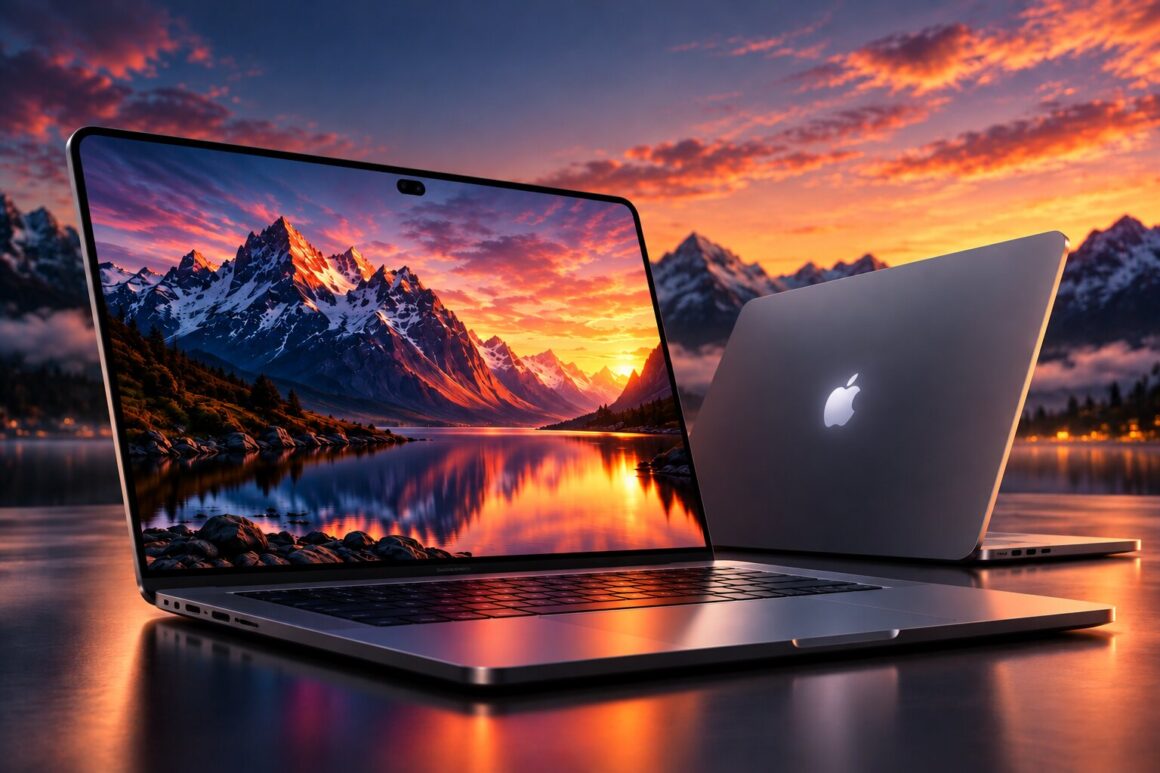
The 14-inch and 16-inch models use a PROLED XDR display with tandem OLED technology and touch sensors built into the panel. Apple describes up to 2,000 nits of peak brightness, a 10,000,000:1 contrast ratio, and a 120Hz variable refresh rate for detailed creative work.
The touchscreen does not turn the Mac into a tablet. MacBook Pro touch controls add direct interaction while the keyboard and Force Touch trackpad remain available for typing, shortcuts, and precise pointer work.
You can read more about the hardware and touchscreen introduction in Apple’s official MacBook Pro announcement.
How to Use Touch Controls on the New MacBook Pro
These five gestures cover the main touchscreen interactions.
1. Tap to Select Items
Tap an icon, button, menu item, or document to select it. macOS can make nearby interface targets easier to hit when it detects finger input.
2. Swipe to Scroll
Slide a finger across the screen to move through webpages, documents, and long lists without repeatedly reaching for the trackpad.
3. Pinch to Zoom
Move two fingers apart to zoom in and bring them together to zoom out. This is useful for photographs, illustrations, and other detailed visual content.
4. Drag and Drop Items
Touch an item and drag it to another location. Apple demonstrates the gesture with presentation slides and visual layouts.
5. Double-Tap to Manage Windows
Double-tap a window to fill the screen. Flick a window toward the left or right edge to use macOS window tiling.
How macOS 27 Adapts to Touch
Touch support requires more than a sensor. macOS 27 can adjust menu items and window controls for finger input, while a swipe from the bottom can reveal the Dock. The goal is to keep the familiar desktop interface while making small targets more comfortable to touch.
What Can You Do With Dynamic Island?
The MacBook Pro replaces the traditional notch with Dynamic Island. Apple identifies three main uses:
- Spotlight: Search for apps, files, and information.
- Live Activities: Follow supported activities and updates.
- Siri AI: Access Apple’s assistant and supported features.
Dynamic Island complements MacBook Pro touch controls by surfacing information without requiring constant window switching.
For more details about the new display and its features, visit Apple’s MacBook Pro with PROLED XDR product page.
Can You Still Use the Trackpad and Keyboard?
Yes. Use touch for quick direct actions, the trackpad for precision, and keyboard shortcuts for repeated commands. A photographer might pinch to inspect an image, then switch to the trackpad for a precise selection. A writer can tap a menu and continue typing normally.
Frequently Asked Questions
Does the new MacBook Pro have a touchscreen?
Yes. Apple’s new 14-inch and 16-inch MacBook Pro models add direct touch through the PROLED XDR display.
Does the touchscreen replace the trackpad?
No. The touchscreen works alongside the Force Touch trackpad and physical keyboard.
Can creative applications use touch gestures?
Yes, although specific behavior depends on each app. macOS can translate touch into clicks, and updated gesture APIs allow developers to build specialized interactions.
Does the new MacBook Pro have Dynamic Island?
Yes. Dynamic Island provides access to Spotlight, Live Activities, and Siri AI.
When did the new MacBook Pro become available?
Apple announced the model on October 28, 2026, with availability beginning November 6, 2026.
The Bottom Line
The touchscreen adds another input option without replacing the traditional Mac experience. Learn the five core gestures, use macOS 27’s touch-aware controls, and combine MacBook Pro touch controls with the keyboard and trackpad according to the task.
Related reading on wpradar.com: using media files on a Mac; video-editing tools for creative workflows.