



Direct Answer
Setting up an Apple HomeView smart home involves more than connecting a display to your accessories. You also need to consider device compatibility, network coverage, household access, and how the system will be maintained. Planning these details before installation can help prevent problems later.

Key Takeaways
- Check Apple Home and Matter compatibility before purchasing accessories.
- Choose a display location with reliable Wi-Fi and convenient access.
- Organize connected devices by room and household use.
- Test voice commands, camera feeds, and security permissions.
- Review software updates and accessory settings regularly.
How to Prepare for Apple HomeView Installation
Before connecting accessories, decide where the display will go and review the equipment already installed in your home.
1. Select a Suitable Location
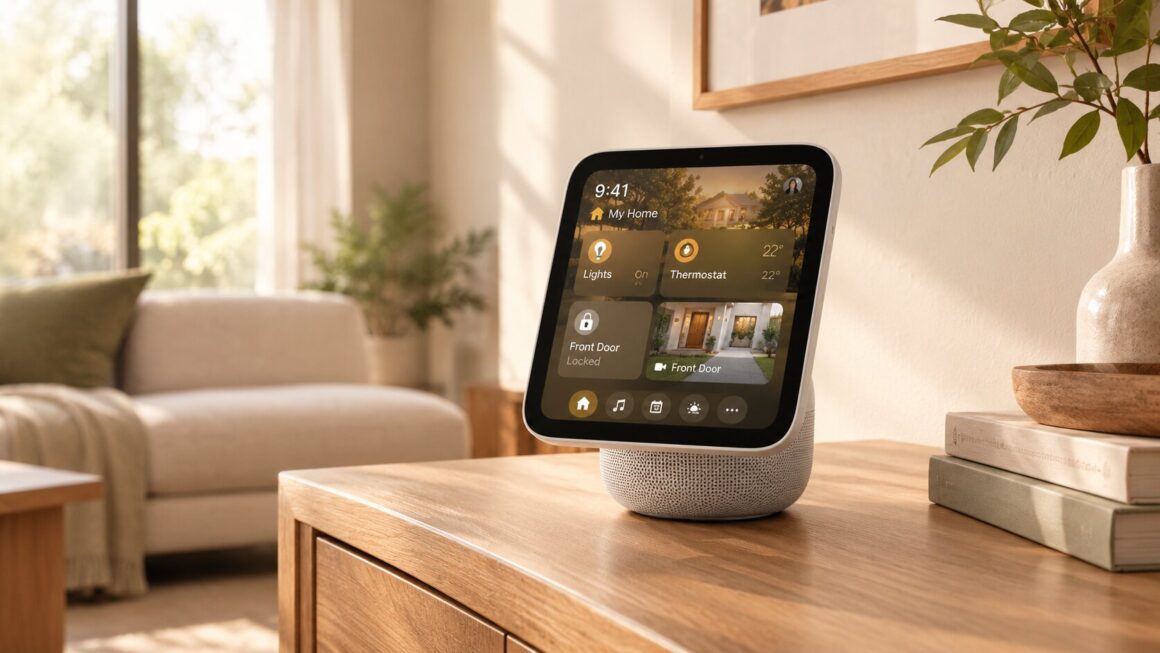
HomeView comes in tabletop and wall-mounted versions. A kitchen or living room may be convenient for shared information, timers, and lighting controls. An entryway can provide easier access to door locks and security cameras.
Check power access, Wi-Fi coverage, visibility, and available space before choosing a permanent location.
2. Check Your Existing Accessories
HomeView works with compatible Apple Home and Matter devices. These may include smart lights, thermostats, locks, blinds, cameras, and sensors.
Review each product before connecting it. Having Wi-Fi connectivity or a separate mobile app does not automatically mean an accessory will work with HomeView.
Use the Apple Home app to add supported devices and organize them by room.
3. Prepare Household Access
HomeView can recognize up to six household members and provide personalized home screens.
Personal-context requests may require a registered Apple Intelligence-enabled iPhone or iPad connected to the same home Wi-Fi network and recently unlocked. The device must also meet Apple’s software and language requirements.
How to Configure Your Apple HomeView Smart Home
After checking compatibility and preparing your accessories, organize the display around the controls people need most.
Organize Everyday Device Controls
The touchscreen provides direct access to supported accessories. You can use it to:
- Switch compatible lights on and off.
- Adjust thermostats.
- Lock supported doors.
- Operate compatible blinds.
- View available security camera feeds.
The Home Modular face can also provide convenient access to favorite accessories.
Test Siri AI Commands
HomeView supports voice control through Siri AI. Depending on your accessories and configuration, you can try requests such as:
- “Turn off the living room lights.”
- “Adjust the thermostat to 24 degrees.”
- “Lock the front door.”
- “Close the living-room blinds.”
- “Show me the camera feeds.”
Test commands individually before relying on more complicated requests. Security-sensitive actions, particularly door access, may have additional limitations.
How to Configure Cameras and Security
HomeView’s Home Camera face can display up to nine compatible camera feeds simultaneously.
This allows you to check different areas of your property, monitor a delivery, or look in on a pet from the same display.
Some recognition features involving people, familiar faces, pets, packages, and vehicles require compatible cameras and a supported iCloud+ subscription. Check recording options, notification settings, and account permissions before depending on these features.
Personalize the HomeView Display
HomeView also provides customizable faces and widgets for household information.
Available display faces include:
- Photos: Shows pictures from a selected shared album.
- Flow: Displays interactive artwork responding to presence and movement.
- Snoopy: Features animations related to time, weather, and occasions.
- Home Modular: Provides access to favorite smart-home accessories.
You can also use supported apps and widgets for calendars, reminders, music, and timers. Separate personalized screens help household members access their own information.
Is Apple HomeView Private and Secure?
Apple says Siri requests can be processed directly on the device or through Private Cloud Compute. Apple states that requests handled through Private Cloud Compute are not stored or made accessible to Apple or others.
Some compatible camera-recognition features are also described as end-to-end encrypted.
However, security depends on more than Apple’s platform protections. Review who can access your connected home, which devices can unlock doors, and what camera notifications are shared.
For the official feature list, compatibility details, and availability information, see Apple’s HomeView announcement in the Apple Newsroom.
Frequently Asked Questions
Which accessories work with Apple HomeView?
HomeView supports compatible Apple Home and Matter accessories. Check individual product compatibility before purchasing.
How many people can use HomeView?
It can recognize up to six household members and provide separate personalized home screens.
Can HomeView display multiple security cameras?
Yes. Its Home Camera face can display up to nine compatible video feeds at once.
Can I operate HomeView using Siri?
Yes. Siri AI supports voice requests for compatible smart-home actions, although available commands depend on device support and configuration.
When will Apple HomeView be available?
Apple announced HomeView in October 2026, with availability scheduled to begin November 13. Check Apple’s regional store for current ordering information.
Maintain Your Connected Home
Once installation is complete, review the system periodically to keep it working as expected.
- Check for software updates on the display, paired devices, and accessories.
- Confirm accessories remain assigned to the correct Apple Home rooms.
- Test important controls manually before relying on automations.
- Review camera notifications and household access permissions.
- Keep track of accessories that require bridges or subscriptions.
Repeat these checks after major software updates or changes to your home network.
The Bottom Line
An Apple HomeView smart home system can bring accessory controls, camera monitoring, and household information into one shared display. Careful planning, compatibility checks, and regular maintenance help make the setup more reliable and convenient for everyone in the home.
Also worth checking out:
- How to Use 3D Graphs in Apple Math Notes and Organize Your Notes
- How to Use Apple’s Live Rewind Audio Intelligence?
- How Do You Smoothly Switch to a New iPhone 18?
- Related reading on wpradar.com: Access control for Internet of Things devices; Safe firmware updates for connected displays.